
Smart TV Virtual Boxing Lessons Setup Guide
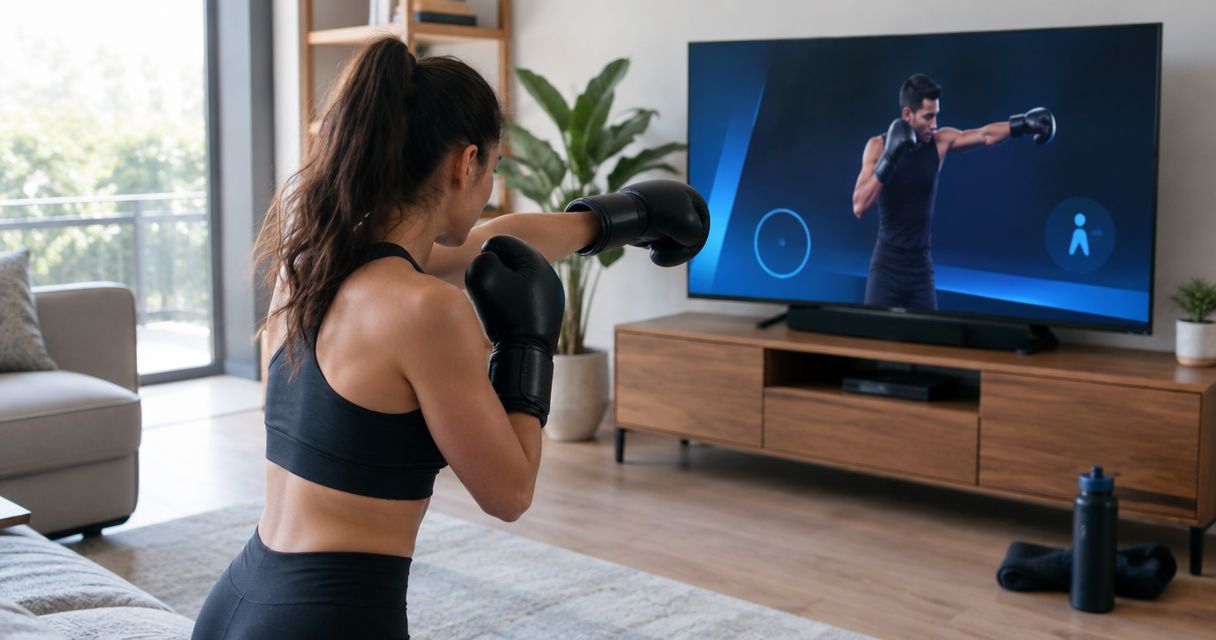
Squinting at a 13-inch laptop screen to catch your own hook is the fastest way to miss a correction from Coach Chris Persaud on your guard. Cast or mirror your Zoom lesson to a smart TV before class starts, and you get a full-body view of your stance, footwork, and punches instead of leaning toward a webcam every time he asks you to reset.
• Smart TV virtual boxing lessons setup works best when a phone, tablet, or laptop stays the camera source and the TV becomes the display via AirPlay, Google Cast, or HDMI. • Native Zoom apps on smart TVs rarely include a built-in camera, so Coach Chris Persaud still needs a separate device pointed at you. • Position the TV 8 to 10 feet away and the camera at chest height to keep your full stance and footwork in frame. • Route audio through the TV speakers, not the source device, to avoid the echo that comes from two speakers running the same Zoom call. • Better Through Boxing's live virtual lessons run over Zoom in 2026, so any TV with screen mirroring, casting, or a Zoom app works.
Why this matters
Coach Chris Persaud corrects mechanics by watching full-body movement: hip rotation on the cross, foot placement on the pivot, hand position on the Core 4 punches. A laptop propped on a kitchen counter crops out your feet, which is exactly the part he needs to see to fix your footwork. A smart TV setup solves two problems at once in 2026: you see the coach's demonstration at a size that actually shows technique, and he sees your entire stance without you readjusting the frame every round. It's a five-minute setup once, not a five-minute scramble before every lesson. You can browse the full lineup of live virtual and in-person coaching options on the Better Through Boxing site if you're still deciding which lesson format fits your schedule.
Before you start
• A Zoom account and the lesson invite link Better Through Boxing sent for your session, whether it's the Basics Program or a private 1-on-1. • A phone, tablet, or laptop with a working front camera - this device does the actual broadcasting, not the TV. • A smart TV with AirPlay, Google Cast (Chromecast built-in), or an HDMI port, on the same stable Wi-Fi network as your camera device. The gotcha that trips people up: most smart TVs cannot run Zoom with a built-in camera pointed at you. Casting only sends the picture one direction, from your device to the screen. You still need a separate camera device in the room, positioned to catch your full stance, even after the TV is connected.
Set up your camera device
• Open Zoom on your phone, tablet, or laptop and join the lesson link Better Through Boxing sent for your session. • Tap Video and confirm the camera icon isn't crossed out, then check the preview window to make sure you're visible. • Prop the device on a stand, tripod, or stack of books at chest height, about 6 to 8 feet back from where you'll be shadowboxing. Expected result: Coach Chris Persaud can see your full stance from ankles to guard, not just your face and shoulders.
Mirror or cast the call to the TV
The method depends on what device is broadcasting your video. For Apple devices: • Swipe down to open Control Center and tap Screen Mirroring. • Select your TV or Apple TV from the device list. • Confirm the on-screen code if the TV prompts for one. For Android or Chrome: • Swipe down for quick settings and tap Cast, or open the Google Home app. • Select your TV from the list of available devices. • On a laptop, click the three-dot menu in Chrome and choose Cast. For any TV with HDMI: • Connect an HDMI cable from your laptop directly to the TV's HDMI 1 input. • Switch the TV's input source using the remote's Source or Input button until HDMI 1 is highlighted. Expected result: the Zoom lesson displays full-screen on the TV while your camera device keeps running the call in the background.
Position the TV and camera for a full-body view
• Place the TV where you'll be facing it while shadowboxing or hitting mitts, not off to the side of your training space. • Set the camera device beside or just above the TV, so the coach's eyeline on screen roughly matches where your camera is pointed. • Back up until your entire body, from stance to guard, fits inside the camera preview - test this before the lesson starts, not mid-round. Expected result: you watch the demonstration on the big screen and stay framed head-to-toe at the same time.
Route the audio correctly
• On your camera device, open Zoom's audio settings and mute or lower its speaker output once the TV takes over sound. • On the TV or connected soundbar, set the volume so you can hear instructions clearly from across the room. • Leave the camera device's microphone active - it's still the one picking up your breathing, footwork, and questions. Expected result: one clear audio source, with no delayed echo repeating every correction a half-second late.
Running Zoom natively on a smart TV with a built-in camera
Some newer Samsung and LG smart TVs ship with a clip-on or built-in camera that runs Zoom directly through the TV's own app store, skipping the phone-as-camera step entirely. • Open the app store on the TV and search for Zoom. • Install the app and sign in with the account you use for Better Through Boxing lessons. • Attach or enable the TV's camera accessory and grant camera and microphone permissions when prompted. • Join the lesson link directly from the TV's app. Expected result: one device handles both video and display, though the fixed camera angle is harder to reposition mid-lesson than a phone on a tripod.
Troubleshooting
• Cast keeps dropping mid-lesson. Move the router closer to your training space or switch the camera device to a 5GHz Wi-Fi band - 2.4GHz gets crowded and drops screen mirroring first. • Audio echoes on every correction. The camera device's speaker is still on. Go back into Zoom's audio settings and set output to the TV or soundbar only. • Coach Chris Persaud says he can't see your feet. The camera angle is too high. Lower it to chest height and back it up another 2 to 3 feet. • HDMI shows a black screen. Wrong input selected. Cycle the TV's Source button until the port with the cable plugged in is highlighted. • The native TV Zoom app freezes mid-lesson. Built-in TV apps run on less processing power than a phone or laptop. Restart the TV or fall back to the phone-as-camera method for the rest of the session. Book your next Zoom lesson Live 1-on-1 boxing coaching with Coach Chris Persaud, worldwide over Zoom.
Customize your workflow
Once the TV setup is dialed in, it works the same way for the Basics Program, a private 1-on-1 session, or a mitt work review - any lesson Better Through Boxing runs over Zoom in 2026. If you want the full picture of how a lesson runs end to end, from booking to the live call itself, the Zoom to live 1-on-1 boxing coaching workflow guide covers that entire path. If you're also tracking your heart rate or punch count during rounds, connecting a smart watch alongside the TV setup adds another layer of feedback without cluttering your camera frame.
FAQ
Do I need a Zoom-compatible smart TV for virtual boxing lessons? No. Most people cast or mirror the Zoom call from a phone, tablet, or laptop to any smart TV. Only a handful of newer TVs with built-in cameras run Zoom natively. Can Coach Chris Persaud see me if I'm just casting to the TV? Yes, as long as the camera device stays active and pointed at you during the call. Casting only sends the picture to the TV screen - your camera device keeps broadcasting your video. What's the best distance to stand from the TV during a virtual boxing lesson? Stand 8 to 10 feet from the TV and position your camera device 6 to 8 feet from you, at chest height, so your full stance and footwork stay in frame. Is AirPlay or HDMI better for a virtual boxing lesson setup? HDMI is more reliable because it isn't dependent on Wi-Fi. AirPlay and Google Cast are more convenient but can lag if your network is congested during the call. How do I stop audio echo when my Zoom call is on both my phone and the TV? Mute or lower the speaker output on your camera device once the TV takes over the audio. Leave the microphone on that same device active. Can I use this smart TV setup for the Better Through Boxing Basics Program? Yes. The Basics Program runs over Zoom, so the same casting or mirroring setup applies to every session in the 6-week schedule. Do smart TVs with built-in cameras work for boxing lessons? They can, but the fixed camera angle is harder to adjust mid-lesson than a phone on a tripod, which makes it tougher to reframe your stance on the fly.
One last thing
The detail most people skip is testing the camera framing before the lesson starts, not during it. A coach can talk you through a stance correction over Zoom in seconds, but he can't fix a camera angle that's cutting off your feet mid-round. Run through the full setup once, five minutes before your first 2026 session, and every lesson after that starts on time instead of thirty seconds late while you re-angle a tripod.
Train with Coach Chris
Ready to put this into practice with a coach watching every rep? Better Through Boxing is private, 1-on-1 coaching with Christopher Persaud — CoachUp's #1 ranked NJ trainer. Train live online over Zoom from anywhere in the world, or work the mitts in person across New Jersey. Book a session at betterthroughboxing.com and get real-time corrections on your stance, footwork, and punches.
Train anywhere with the Ronin Box app
Voice-cued boxing workouts, round timer, and progress tracking — coached by Chris, right in your pocket.

Scan to install